
The best 4K YouTube conversion result comes from keeping the original resolution, choosing the right codec, and avoiding repeated compression. A 4K file can look sharp or terrible depending on bitrate, source quality, format, and the converter’s settings. The safest general choice is MP4 with H.264 for compatibility, while HEVC or AV1 suits smaller files and newer devices.
TLDR: 4K YouTube video conversion changes a video into another file format, but it cannot create real detail that was not in the source. For example, a 3840 x 2160 video exported at 35 Mbps usually looks far cleaner than the same video crushed to 8 Mbps. A social media editor converting ten 4K clips per week may save 40% to 60% storage by using HEVC instead of H.264, though older devices may struggle to play it. For broad sharing, MP4 is still the least annoying option.
What 4K YouTube Video Conversion Means
4K YouTube video conversion means taking a YouTube video source or downloaded file and changing its format, codec, resolution, bitrate, audio settings, or container. The source might be a creator’s original upload, a legally downloaded video, or licensed material used for editing, archiving, or playback.
True 4K usually means 3840 x 2160 pixels. Some cinema workflows use 4096 x 2160, but most YouTube content uses 3840 x 2160. The converter reads the input file, decodes its video and audio streams, then re-encodes them into a new output file.
The catch is that every re-encode can reduce quality. A converter may keep the same resolution while throwing away detail through heavy compression. That is why a file can say “4K” and still look soft, blocky, or smeared in motion.
How 4K YouTube Conversion Works
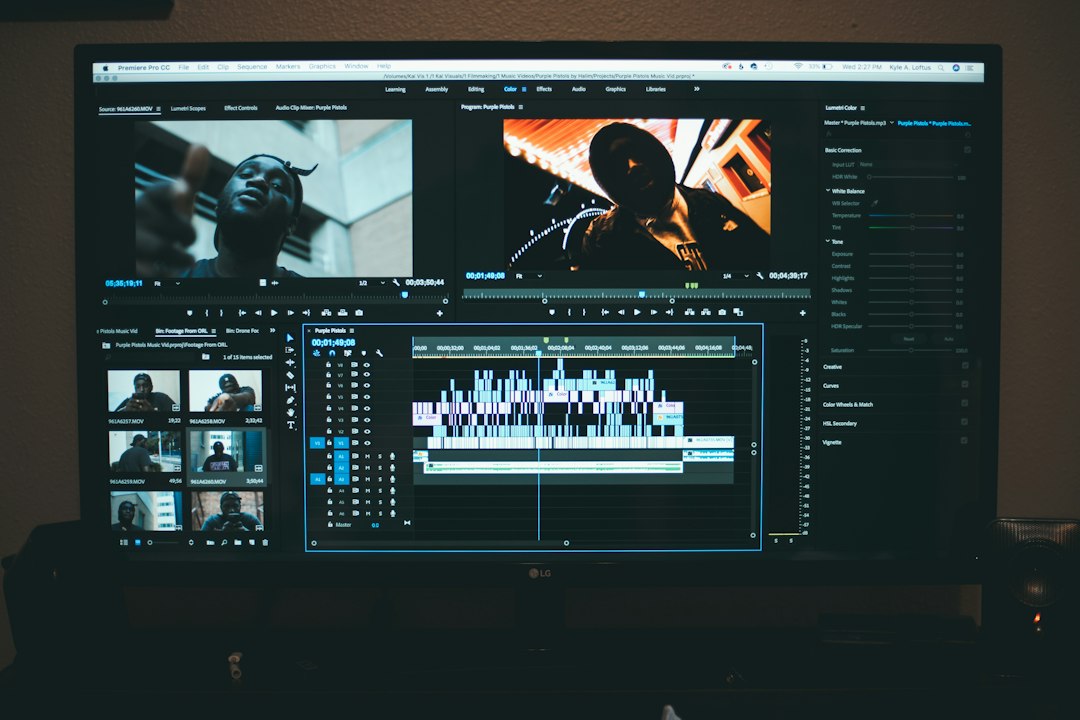
The process has three main stages: decoding, processing, and encoding.
- Decoding: The software reads the original video codec, such as VP9, AV1, H.264, or HEVC.
- Processing: It may resize the frame, adjust frame rate, normalize audio, trim the clip, or add subtitles.
- Encoding: It writes a new file using the chosen codec, bitrate, container, and audio format.
YouTube itself often stores 4K video in VP9 or AV1, depending on the upload and playback device. When a user converts that video to MP4, the output often uses H.264 or HEVC. This shift matters because each codec handles detail, motion, color, and file size differently.
Honestly, it feels like some converters hide the useful settings behind extra clicks. A basic format change should take seconds, yet poorly designed tools can add 20 or 30 seconds of menu hunting before the export even starts.
What Affects 4K Output Quality
Source quality matters most. A clean original upload gives the converter more data to preserve. A low-bitrate stream, screen recording, or previously compressed file gives weak results, even with perfect settings.
Several factors shape the final file:
- Bitrate: Higher bitrate usually means more detail and fewer compression artifacts. For 4K H.264, 35 to 68 Mbps can be useful for high-quality exports. HEVC and AV1 can often use less.
- Codec: Modern codecs such as HEVC and AV1 keep better quality at smaller sizes, but compatibility can be worse.
- Frame rate: 60 fps needs more bitrate than 24 or 30 fps. Fast gaming footage at 60 fps can fall apart if bitrate is too low.
- Resolution: Upscaling 1080p to 4K does not create true 4K detail. It only enlarges the image.
- Color depth: 10-bit video handles gradients better than 8-bit, especially in skies, shadows, and HDR footage.
- Audio settings: AAC at 192 to 320 kbps is fine for most uses. Lossless audio is better for editing, but it makes files larger.
Compression artifacts are the common enemy. They appear as blocky patches, blurred textures, flickering edges, or banding in smooth gradients. They are most visible in dark footage, confetti, water, smoke, grass, and fast camera movement.
Best Formats for Different Uses
The “best” format depends on the job. A person sending a file to a client needs something different from an editor storing masters for future work.
Best for General Playback: MP4 with H.264
MP4 H.264 is the safest format for phones, computers, TVs, browsers, and media players. It is not the most efficient codec, but it plays almost everywhere. For 4K files, it creates larger files than HEVC or AV1 at similar quality.
Best for: sharing, presentations, USB playback, client previews, and older devices.
Best for Smaller 4K Files: MP4 or MKV with HEVC
HEVC, also called H.265, can reduce file sizes by around 30% to 50% compared with H.264 at similar visual quality. It works well for 4K because it was built for high-resolution video. The weak spot is device support. Some older systems may fail to play it smoothly.
Best for: archiving finished videos, 4K home libraries, modern phones, and smart TVs.
Best for Future Efficiency: AV1
AV1 offers excellent compression and strong quality at lower bitrates. YouTube uses AV1 for many high-resolution streams because it saves bandwidth. The downside is slower encoding and mixed support on older hardware.
Best for: long-term web delivery, bandwidth savings, and modern devices with AV1 decoding.
Best for Editing: ProRes, DNxHR, or High-Bitrate Intraframe Files
Editing formats are not small. They are built for smooth timelines and repeated exports. Apple ProRes and Avid DNxHR preserve quality better during editing, though file sizes can be huge. A short 4K ProRes file can take several gigabytes.
Best for: professional editing, color grading, VFX, and handoff between editors.
Best for Subtitles and Multiple Audio Tracks: MKV
MKV is flexible. It can hold several audio tracks, subtitle files, chapters, and different codecs. It is common for personal archives, but it is less universal than MP4.
Best for: archives, language versions, subtitles, and media server libraries.
Recommended 4K Conversion Settings
For most users, a simple starting point works well:
- Container: MP4
- Codec: H.264 for compatibility, HEVC for smaller files
- Resolution: 3840 x 2160 if the source is true 4K
- Frame rate: Same as source
- Bitrate: 35 to 45 Mbps for 4K 30 fps H.264, 45 to 68 Mbps for 4K 60 fps H.264
- Audio: AAC, 48 kHz, 192 to 320 kbps
For HEVC, lower bitrates may still look good. A 4K 30 fps file might look strong around 18 to 30 Mbps, depending on motion and detail. For AV1, the number can be lower again, though encoding time may be much longer.
Common Mistakes to Avoid
- Upscaling low-quality footage: A 720p or 1080p file will not become true 4K through conversion.
- Using very low bitrate: Low bitrate causes soft detail and blocky motion.
- Changing frame rate without reason: Converting 24 fps to 60 fps can create odd motion unless frame interpolation is handled well.
- Re-encoding many times: Each pass can add visible damage.
- Ignoring playback support: A perfect HEVC file is useless if the target device cannot open it.
Legal and Practical Considerations
Conversion should be done with content the user owns, has permission to use, or is allowed to save under license terms. YouTube’s rules and copyright law may restrict downloading or converting videos from the platform. For creators, the cleanest workflow is to convert from the original upload file, not a compressed stream pulled from the web.
Storage also matters. A one-hour 4K file can range from under 10 GB to more than 100 GB, depending on codec and bitrate. That gap affects backups, upload times, and editing speed.
FAQ
Does converting a YouTube video to 4K improve quality?
No. If the source is not true 4K, conversion only enlarges the image. It may look slightly cleaner with good scaling, but it will not gain real detail.
Which format is best for 4K YouTube video conversion?
MP4 with H.264 is best for broad compatibility. HEVC is better for smaller 4K files on newer devices. AV1 is strong for web use and long-term compression efficiency.
What bitrate should a 4K converted video use?
For H.264, 35 to 45 Mbps works well for 4K 30 fps, while 45 to 68 Mbps suits 4K 60 fps. HEVC and AV1 can often use lower bitrates.
Why does a converted 4K video look blurry?
The source may be low quality, the bitrate may be too low, or the converter may use poor encoding settings. Fast motion and dark scenes make the problem worse.
Is MP4 always better than MKV?
No. MP4 is better for compatibility. MKV is better for storing subtitles, chapters, and multiple audio tracks in one file.
Is HEVC worth using for 4K?
Yes, when the target devices support it. It can save major storage space while keeping solid quality, especially for finished 4K videos.