

Treat unexpected Quick Assist sessions as a security incident until proven otherwise. Ransomware crews abuse trusted remote support tools because they do not need to break in when they can talk someone into opening the door. Microsoft Quick Assist is useful for legitimate help desk work, but in the wrong hands it can give an attacker live keyboard, mouse, and screen access inside a real user session.
TLDR: Quick Assist ransomware attacks usually start with social engineering, not malware. A user may receive a phone call claiming to be from IT, enter a six digit Quick Assist code, and unknowingly hand control to an attacker. In one realistic case, a finance employee spends 12 minutes on a fake support call, the attacker installs a remote access tool, and ransomware is deployed across shared systems hours later. Organizations should restrict Quick Assist, monitor remote support activity, train users on approval prompts, and require verified support workflows.
Why attackers like Quick Assist
Quick Assist is built into modern Windows environments and is signed by Microsoft. That gives it credibility. It is also familiar enough that many users do not question it, yet uncommon enough that they may not know what every prompt means.
The frustrating part is that the attack often looks like a normal support interaction. There may be no suspicious attachment. No strange executable at first. No obvious exploit. Just a polite caller, a support code, and a user who wants to get back to work.
Threat actors have used this method in ransomware campaigns because it helps them avoid noisy early-stage malware. Once remote control is granted, they can assess the machine, issue commands, move to other tools, and prepare the next phase of the intrusion.
How the technique works
Most Quick Assist abuse follows a simple pattern. The details vary, but the logic is consistent: create urgency, gain trust, obtain remote access, then deepen control.
- Initial contact: The attacker calls, emails, or messages the victim. They may pretend to be internal IT, Microsoft support, a managed service provider, or a security vendor.
- Pretext: The user is told there is a problem. Common stories include a compromised account, failed update, payroll issue, spam outbreak, or “urgent endpoint check.”
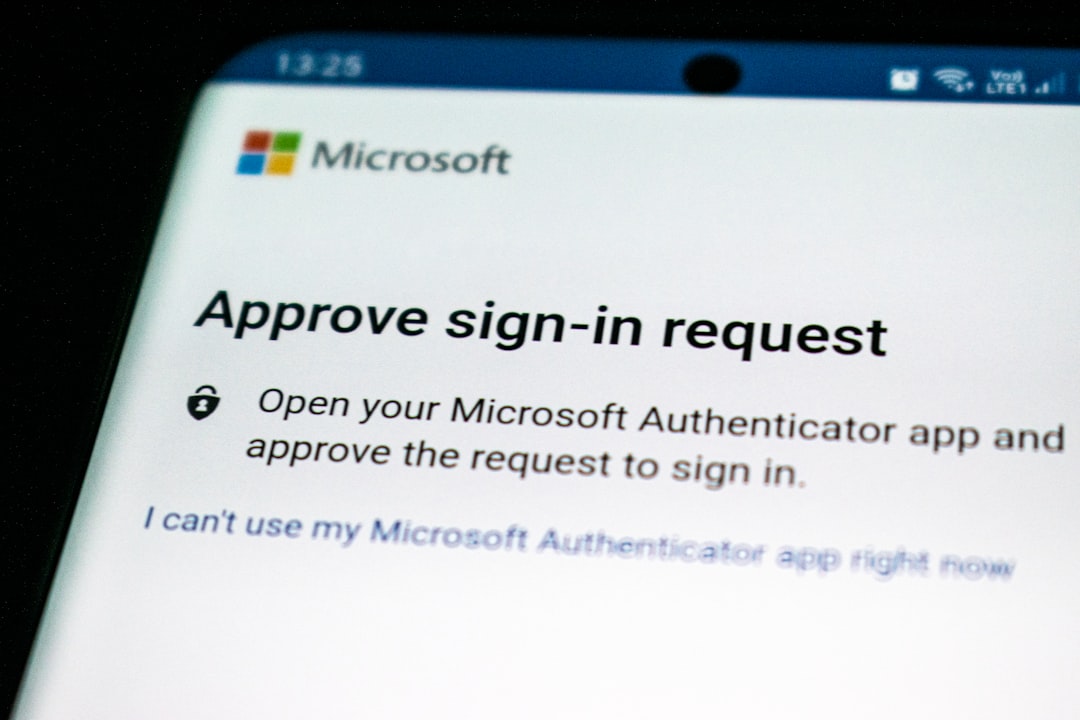
- Quick Assist code exchange: The attacker starts a Quick Assist session from their side and gives the user a code. The user enters it and approves screen sharing or control.
- Hands on keyboard access: The attacker can view the desktop and request control. If the user approves, the attacker can operate the machine as if sitting at it.
- Tool staging: The attacker may download another remote management tool, run scripts, open command shells, or change settings to keep access after Quick Assist closes.
- Credential and network discovery: The attacker looks for saved passwords, browser sessions, VPN access, shared drives, admin tools, and internal portals.
- Ransomware preparation: The attacker escalates privileges, disables protections where possible, spreads to servers, collects data, and then triggers encryption or extortion activity.
This is not “hacking” in the cinematic sense. It is abuse of a trusted workflow. The attacker convinces a person to approve something that appears routine. That is why standard anti phishing controls may miss the first step.
What makes the attack hard to spot
Quick Assist operates over legitimate Microsoft infrastructure. Security tools may see a known Windows component rather than a suspicious binary. Also, the session is user approved, which can reduce the number of clear technical red flags.
There are warning signs, though. A fake support call often creates pressure. The caller may resist verification. They may ask the user to ignore warnings or approve a control request quickly. They may also steer the user away from normal ticketing channels.
Expect to waste time on messy log review if remote support is not centrally tracked. Many organizations allow several support tools at once, including Quick Assist, Teams screen sharing, RDP, browser based tools, and third party remote monitoring platforms. That makes it harder to answer a basic question: who connected to whom, when, and why?
Defensive controls that reduce risk
Organizations should not rely on user awareness alone. Training helps, but attackers are patient and persuasive. Controls must make unsafe behavior harder and suspicious behavior easier to detect.
- Restrict or disable Quick Assist where it is not needed. Use Windows policy, application control, or endpoint management settings to limit use. If the help desk does not use it, block it.
- Create an approved remote support process. Users should know that support sessions must start from a ticket, company portal, or verified internal number. No ticket should mean no session.
- Require identity checks. Support staff should verify the user, and users should verify support staff. Use internal chat, call back numbers, or service desk portals.
- Monitor Quick Assist execution. Alert when Quick Assist starts, when unusual users launch it, or when it appears on sensitive systems such as finance, legal, engineering, or domain admin workstations.
- Control follow on tools. Many attacks shift from Quick Assist to another remote access tool. Block unapproved remote administration software and alert on new installs.
- Limit local admin rights. A standard user session should not allow broad software installation, security tool tampering, or system configuration changes.
- Use endpoint detection and response. EDR should watch for suspicious child processes, script execution, credential access, and defense evasion after a remote support session starts.
- Segment the network. A compromised workstation should not have easy access to file servers, backups, identity systems, and production platforms.
- Protect backups. Keep offline or immutable backups. Test restoration. Ransomware response plans fail when backups are present but unusable.

What users should be told
User guidance must be short and blunt. Long security memos do not survive a stressful phone call. Give employees rules they can remember.
- Never enter a Quick Assist code from an unexpected caller.
- Never approve remote control unless you opened a verified support ticket.
- Hang up and call the service desk using the published internal number.
- Report the attempt, even if nothing was installed.
Managers should repeat this message during onboarding and security refreshers. Finance, HR, executive assistants, and IT administrators need extra attention because they are high value targets.
Signals defenders should investigate
Security teams should build detections around both the remote support event and the activity that follows. A single Quick Assist launch may be normal. A Quick Assist launch followed by PowerShell, archive tools, credential prompts, new remote access software, or access to many file shares is much more serious.
Useful signals include:
- Quick Assist launched outside business hours.
- Quick Assist used by departments that do not normally need it.
- Multiple remote support sessions across several users in a short period.
- Installation of remote tools soon after a support session.
- Unusual access to shared drives, backup consoles, or identity systems.
- Security controls stopped, disabled, or reconfigured.
- Large file compression, staging, or outbound transfers.
When these signals appear, act fast. Isolate the endpoint. Preserve logs. Reset exposed credentials. Check for persistence. Review other systems touched by the same user account. Notify the incident response team before the attacker has time to spread.
Policy choices: block, allow, or tightly control
There is no single answer for every organization. Some teams need Quick Assist for remote staff. Others already use a managed support platform with session recording, approval workflows, and audit logs. If Quick Assist is redundant, blocking it is usually the cleanest option.
If it must remain available, apply tight controls. Limit it to support groups. Keep logs. Document every session. Require tickets. Record who approved the session and why. Review usage regularly. A remote support tool without audit discipline becomes a blind spot.
Incident response checklist
If a user reports a suspicious Quick Assist session, assume the device may be compromised. Do not just close the session and move on.
- Disconnect the affected device from the network.
- Collect event logs, EDR data, browser history, and downloaded files.
- Identify any new tools, scripts, accounts, or scheduled tasks.
- Reset passwords for the user and any accounts used during the session.
- Check file shares, cloud apps, email rules, and VPN logs.
- Hunt for the same indicators across all endpoints.
- Review whether data was copied before encryption occurred.
The main defense is simple: legitimate remote support must be predictable, verified, and logged. Attackers succeed when support feels informal and urgent. Remove that ambiguity, and Quick Assist becomes far less useful to ransomware crews.