
The fastest way to save an email as a PDF on an iPhone is to use the built-in Print option, then save the print preview to the Files app. This works in Apple Mail, Gmail, Outlook, Yahoo Mail, and most other email apps. You do not need a paid PDF app, a desktop computer, or a real printer.
TLDR: Open the email, tap the Share or More menu, choose Print, open the print preview, then tap Share and select Save to Files. For example, if you receive a flight receipt in Gmail, you can turn it into a PDF in under 30 seconds and store it in iCloud Drive. For many users, this cuts out several extra steps, such as forwarding the email to a laptop or taking messy screenshots.
Why Save an Email as a PDF on iPhone?
Email is not always the best long-term storage format. Messages can be deleted, accounts can be closed, and search results can get buried. A PDF gives you a clean, portable file that is easy to store, send, or print later.
Saving email as a PDF is useful for:
- Receipts and invoices for tax records or refunds.
- Travel confirmations, such as hotel bookings and boarding details.
- Legal or work messages that need to be archived.
- Customer service chats sent by email.
- Proof of communication when timing matters.
The annoying part is that Apple does not label this as “Save as PDF.” It is hidden inside the Print menu, which makes the feature easy to miss.
How to Save an Email as PDF in Apple Mail
If you use the default Mail app on iPhone, follow these steps:
- Open the Mail app.
- Tap the email you want to save.
- Tap the Reply arrow at the bottom of the screen.
- Select Print.
- When the print preview appears, use two fingers to pinch outward on the preview. On some iOS versions, you can tap the preview instead.
- Tap the Share icon.
- Choose Save to Files.
- Select a folder, such as iCloud Drive, On My iPhone, or a folder in a cloud storage app.
- Tap Save.
Your email is now saved as a PDF. You can open it later from the Files app, attach it to another email, upload it to a form, or move it into a folder.
How to Save a Gmail Email as PDF on iPhone
The Gmail app also supports saving emails as PDFs, but the menu is not always obvious. Follow this method:
- Open the Gmail app.
- Open the email you want to save.
- Tap the three dots near the top right of the message.
- Choose Print. If the email is part of a thread, you may see Print all.
- On the Printer Options screen, open the preview by pinching outward with two fingers.
- Tap the Share icon.
- Select Save to Files.
- Pick the folder where you want the PDF stored.
- Tap Save.
If you choose Print all, Gmail may include the entire conversation thread. That is useful for support cases or disputes. If you only need one message, use the three-dot menu attached to that specific email inside the thread.
Tip: Before saving, scan the preview. Gmail threads can include repeated signatures, quoted replies, tracking notices, and old messages. A short email can turn into a six-page PDF if the full thread is included.
How to Save an Outlook Email as PDF on iPhone
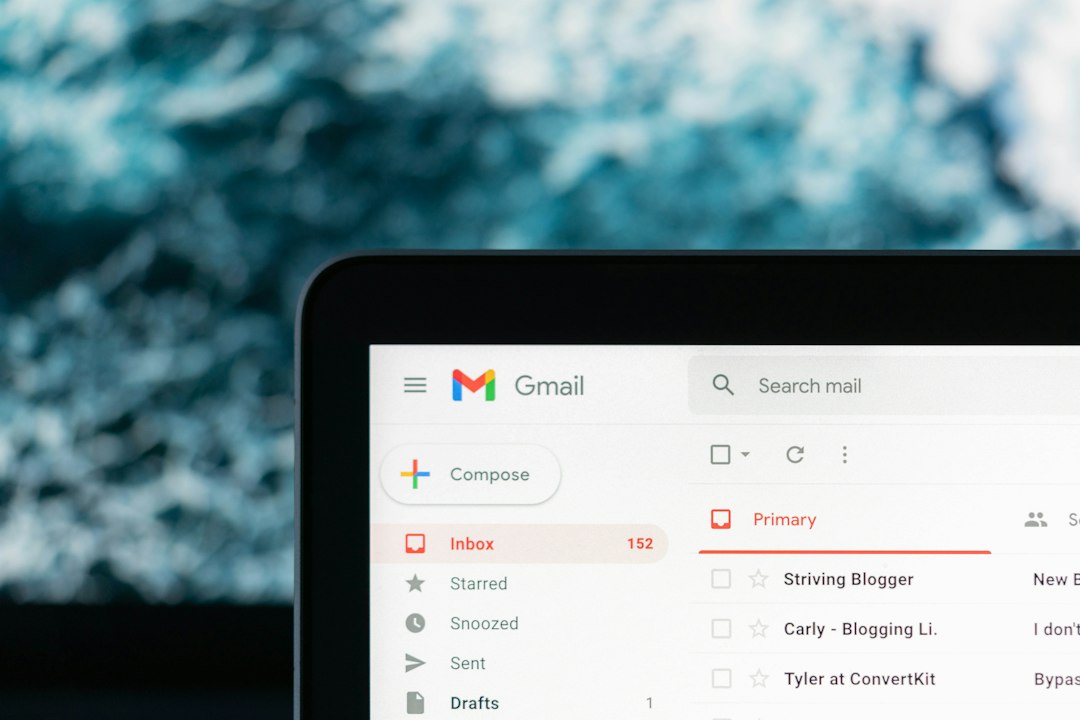
Microsoft Outlook for iPhone uses a similar print-to-PDF method. Here is the usual path:
- Open the Outlook app.
- Select the email you need to save.
- Tap the three dots or menu icon.
- Choose Print or Print Conversation.
- Wait for the iPhone print preview to appear.
- Pinch outward on the preview to open it as a PDF-style document.
- Tap the Share icon.
- Tap Save to Files.
- Choose a folder and tap Save.
Outlook may take a few extra seconds to generate the preview, especially for long conversations or messages with company signatures. Honestly, it feels slower than it should when you only need one clean PDF. Still, the result is usually reliable.
How to Save Emails from Yahoo, Proton Mail, Spark, and Other Apps
Most email apps on iPhone follow the same pattern. You are looking for one of these options:
- Share
- More
- Export
- Open in
Once you reach the iPhone print preview, the process is the same. Open the preview, tap Share, then save the file to Files. If the app does not offer printing, open the email in Safari through webmail and use the browser share sheet or print menu.
Where Are Saved Email PDFs Stored?
When you tap Save to Files, the iPhone asks where to store the PDF. Common choices include:
- iCloud Drive: Best if you want access on iPad, Mac, or another iPhone.
- On My iPhone: Best for local storage only.
- Google Drive, OneDrive, or Dropbox: Good for teams or shared folders, if those apps are installed.
Use clear folder names. For example, create folders such as Receipts 2026, Medical Records, or Client Emails. Rename the PDF when saving if possible. A file called Hotel booking Rome March 2026.pdf is far easier to find than Print.pdf.
Can You Save Email Attachments in the Same PDF?
Usually, no. The print-to-PDF method saves the email body, visible images, sender details, date, subject line, and message text. Attachments often remain separate files.
If you need the attachment too, open it and save it separately. For a receipt email with an attached invoice, save both:
- The email message as one PDF.
- The attached invoice as another PDF or original file.
If you need one combined PDF, you can use the Files app to create a merged document if your iOS version supports it, or use a trusted PDF editor. Be careful with sensitive files. Avoid uploading private medical, legal, or financial email content to unknown services.
Troubleshooting Common Problems
The Print option is missing. Update the email app first. If it still does not appear, open the email in a browser and try from there.
The PDF cuts off part of the email. Check the print preview before saving. Some newsletters and promotional emails use layouts that do not convert neatly.
The PDF is too long. You may have selected a full email thread. Go back and print only the single message.
Images are missing. Make sure the email has fully loaded before using Print. If remote images are blocked, allow images first, then create the PDF.
You cannot find the file. Open the Files app and check Recents. Also check iCloud Drive and On My iPhone. Use the search bar with part of the email subject.
Best Practices for Saving Important Emails as PDFs
- Save the PDF soon if the message contains time-sensitive proof.
- Keep the original email until you are sure the PDF saved correctly.
- Use consistent file names with dates, names, and subject details.
- Store private PDFs carefully, especially tax, banking, legal, and health messages.
- Back up important files to iCloud Drive or another trusted storage service.
Saving an email as a PDF on iPhone is simple once you know the trick: use Print, open the preview, then save through the Share menu. It works across Gmail, Outlook, Apple Mail, and many other apps. The menus vary slightly, but the basic process stays the same.