
Your Surface Book 2 has a neat little party trick. Its keyboard can glow in the dark. That means fewer typos, less squinting, and more “wow, this still feels fancy” energy at your desk.
TLDR: To turn on the Surface Book 2 backlit keyboard, press the F7 key. Look for the key with the small keyboard light icon. Press it again to make the light brighter, and press it more times to cycle through the brightness levels. If it does not work, try holding Fn and then pressing F7.
Meet the Magic Key
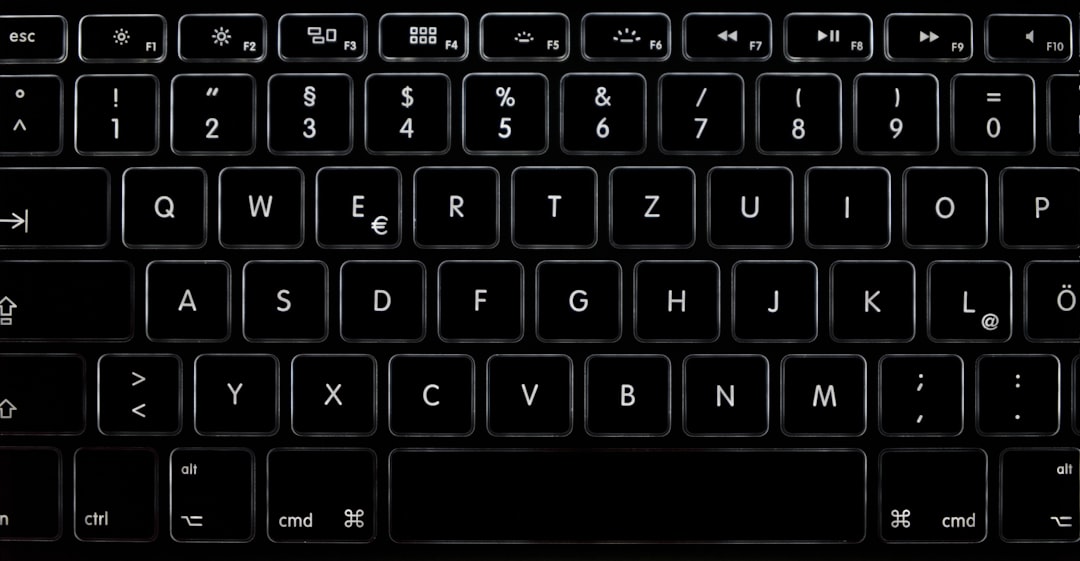
The main key you need is usually F7. It sits on the top row of the keyboard. It has a little icon that looks like a keyboard with light rays. Cute, right?
On the Surface Book 2, the keyboard backlight is controlled from the keyboard itself. You do not need to dig through scary menus. You do not need a secret app. You do not need to offer snacks to Windows. Just press the right key.
Here is the simple move:
- Find the F7 key on the top row.
- Look for the keyboard light icon.
- Press it once.
- Your keyboard should light up.
That is it. Tiny button. Big glow.
How the Brightness Levels Work
The Surface Book 2 keyboard light has more than one level. It is not just on or off. It is more like a tiny lamp with moods.
Press the backlight key once. The keyboard may turn on at a low level. Press it again. It may get brighter. Press it again. It may get brighter still. Press it once more, and it may turn off.
The cycle usually works like this:
- Off
- Low brightness
- Medium brightness
- High brightness
- Off again
Your exact cycle may feel a little different. That is normal. The important part is this: keep pressing the key to move through the levels.
If you are in a dark room, a low level may be enough. If you are typing in a blanket fort at midnight, go brighter. No judgment.
What If F7 Does Something Else?
Sometimes the top row keys act like function keys. Sometimes they act like special shortcut keys. This depends on the Fn key.
The Fn key means “function.” It is a little keyboard helper. It changes what the top row does.
If pressing F7 does not turn on the keyboard light, try this:
- Hold down the Fn key.
- While holding it, press F7.
- Let go of both keys.
If that works, great. Your keyboard was just being a tiny bit dramatic.
You can also check if Fn Lock is on. On many Surface keyboards, you can press Fn + Caps Lock to switch Fn Lock on or off. When Fn Lock changes, the top row behavior changes too.
Think of it like flipping a light switch for the light switch. Silly, but useful.
Step by Step: Turn On the Backlit Keyboard
Let us make this super clear. No tech fog. No mystery soup.
- Sit in front of your Surface Book 2.
- Make sure the keyboard base is attached.
- Look at the top row of keys.
- Find F7 or the key with the keyboard light icon.
- Press it once.
- If nothing happens, press Fn + F7.
- Press the key again to change brightness.
- Stop when the keyboard looks right.
Done. You are now the captain of the glow.
Why the Keyboard Light May Turn Off by Itself
Do not panic if the light turns off after a while. Your Surface Book 2 is not haunted. It is saving power.
The backlight may turn off when you stop typing. This helps your battery last longer. As soon as you press a key or touch the trackpad, the light should come back.
This is normal behavior. It is like the keyboard is taking a tiny nap.
If you are working late, this can actually be handy. The light appears when you need it. Then it rests when you do not.
What If the Keyboard Still Will Not Light Up?
Okay. You pressed F7. You tried Fn + F7. You whispered nice things to the laptop. Still no glow?
Let us check a few things.
1. Make Sure the Keyboard Is Attached
The Surface Book 2 has a detachable screen. That is one of its cool tricks. But the keyboard backlight is in the keyboard base. If the screen is detached, there is no keyboard backlight to turn on.
Make sure the tablet part is firmly connected to the base. You should hear or feel it click into place.
2. Check the Battery
If your battery is very low, the device may limit some features. Plug in your charger. Wait a minute. Then try the backlight key again.
Low battery can make devices act weird. It is like when people get hungry. Things get dramatic fast.
3. Restart the Surface Book 2
Yes, the classic move. Turn it off and on again.
To restart:
- Click the Start button.
- Click the Power icon.
- Select Restart.
After it turns back on, try F7 again.
4. Update Windows
Updates can fix keyboard and driver problems. They can also make your Surface Book 2 behave better.
To check for updates:
- Open Settings.
- Go to Windows Update.
- Click Check for updates.
- Install anything important.
- Restart if asked.
This may sound boring. It is. But it works more often than you would think.
5. Clean Around the Keys
Dirt can cause key trouble. Crumbs are small, but they are sneaky. If the backlight key is stuck or not responding, clean the keyboard gently.
Use a soft cloth. You can also use a little compressed air. Do not pour liquid on the keyboard. Your Surface Book 2 does not want a bath.
Can You Change the Keyboard Backlight in Windows Settings?
For the Surface Book 2, the backlight is mostly controlled by the keyboard shortcut. Windows does not always give you a big, friendly slider for it.
So if you are hunting through Settings and feeling lost, stop. You probably do not need to be there.
Use the keyboard key. It is faster. It is easier. It is the keyboard’s own little remote control.
Best Times to Use the Backlit Keyboard
The backlit keyboard is not only for night owls. It is useful in many places.
- Dark rooms: Great for late work or study.
- Airplanes: Perfect when the cabin lights are low.
- Meetings: Helpful when the room is dim for slides.
- Bedrooms: Useful when someone else is sleeping.
- Cafes: Nice when the lighting is “cozy but impossible.”
It can also just look cool. That is allowed.
When You Should Turn It Off
The backlight uses battery. Not a huge amount, but still some. If you are trying to stretch battery life, turn it off when you do not need it.
Just press the backlight key until the keyboard goes dark.
Turn it off if:
- You are in a bright room.
- You are low on battery.
- You are watching a movie.
- The glowing keys are distracting you.
Your keyboard light is there to help. It should not steal the show.
Quick Troubleshooting Cheat Sheet
Here is a fast list if you want answers without the drama.
- Need to turn it on? Press F7.
- F7 not working? Try Fn + F7.
- Still dark? Restart the Surface Book 2.
- Keyboard detached? Attach it to the screen.
- Battery low? Plug in the charger.
- Key stuck? Clean the keyboard gently.
- Still not working? Run Windows Update.
A Tiny Note About Keyboard Icons
Keyboard icons can be small. Very small. Almost rude.
If you cannot see the icon, use a bright light or your phone flashlight. Look across the top row. You are hunting for a little keyboard shape with light marks.
On many Surface Book 2 keyboards, it is on F7. If your keyboard layout is different, trust the icon more than the letter.
Different regions can have slightly different layouts. The glow key is still the glow key.
Final Glow Up
Turning on the Surface Book 2 backlit keyboard is simple. Press F7. If needed, press Fn + F7. Then keep pressing to choose the brightness level you like.
If the light does not appear, check the keyboard connection, battery, updates, and the key itself. Most of the time, the fix is quick.
Now you can type in the dark like a calm tech wizard. Your keys can shine. Your fingers can find their way. And your Surface Book 2 can look just a little more magical.