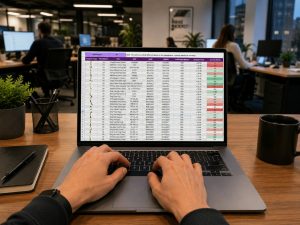

For most Chrome freezes, a person should restart only the bad tab or extension in Chrome Task Manager before killing the whole browser in Windows Task Manager. Chrome has its own Task Manager, and on Windows it can be opened with Shift + Esc [source: Google]. That matters because Chrome splits tabs, extensions, and browser processes into separate pieces, so one broken page does not always mean the whole browser is dead.
TLDR: Chrome Task Manager is best when one tab, extension, or site is slow. Windows Task Manager is better when Chrome will not close, the screen is stuck, or the browser is eating system memory. For example, if one shopping tab uses 1.2 GB of memory while 11 other tabs are fine, ending only that tab is faster and safer. If Chrome takes 30 seconds to respond and the mouse feels delayed, Windows Task Manager is the better hammer.
Chrome Task Manager vs Windows Task Manager: The quick difference
Chrome Task Manager works inside the browser. It shows Chrome items such as tabs, subframes, extensions, service workers, and GPU activity. It is best for browser-level problems.
Windows Task Manager works at the operating system level. It shows apps, background processes, CPU use, memory use, disk activity, and startup apps. It is best when Chrome is hurting the whole computer.
The catch is that both tools may show “Chrome,” but they do not tell the same story. Chrome Task Manager might show one bad extension. Windows Task Manager may just show several “Google Chrome” processes with no clear tab names. That can make a simple freeze feel more annoying than it should.
Image not found in postmetaWhen Chrome Task Manager is the better choice
Chrome Task Manager should be the first stop when Chrome is still somewhat usable. If buttons respond, menus open, and the browser is not fully locked, it gives a cleaner answer.
It helps in cases like these:
- One tab is frozen: A video page, spreadsheet, or news site stops responding.
- An extension acts weird: Ad blockers, coupon tools, password tools, or meeting add-ons can misbehave.
- A tab uses too much memory: Heavy pages can pass hundreds of MB fast.
- Video calls lag: A browser meeting can slow down if another tab is eating CPU. This also affects browser based video meetings.
To use it, the user opens Chrome, presses Shift + Esc, selects the bad tab or extension, then clicks End process. The tab may show an error page after that. Reloading it starts fresh.
This method is less destructive. It usually keeps other tabs open. It also avoids the pain of restarting a full research session. It drives people crazy when one badly written page takes down ten useful tabs, and this tool often prevents that.
When Windows Task Manager is the better choice
Windows Task Manager is the right tool when Chrome stops cooperating. If the whole computer feels slow, Chrome menus do not open, or the browser refuses to close, the system tool wins.
It is useful when:
- Chrome will not respond at all.
- CPU usage stays very high.
- Memory use is crushing the PC.
- Chrome keeps running after the window closes.
- Malware or a browser hijack is suspected.
To use it, the user presses Ctrl + Shift + Esc, finds Google Chrome, and clicks End task. This shuts down Chrome and its related processes. It is blunt, but it works.
This is also helpful when strange search pages, forced redirects, or unknown extensions appear. In that case, ending Chrome is only a short fix. The user may need to check for browser hijacking and remove the cause.
How to restart Chrome cleanly
There are three common ways to restart Chrome. Each one fits a different problem.
- Close and reopen Chrome: Best for normal slowdowns.
- Use Chrome Task Manager: Best for one bad tab or extension.
- Use Windows Task Manager: Best for full freezes or system-wide lag.
There is also a shortcut: typing chrome://restart in the address bar restarts Chrome and reopens the previous session. That can be useful after settings changes. Still, it should not be used if Chrome is already unstable and barely responding.
If a site crashes again after restart, the issue may not be Chrome itself. It may be a bad website, broken script, server problem, or local network issue. For errors that look unclear, it helps to compare browser-side problems with unexpected web errors.
Which tool should be used first?
The best order is simple. If Chrome still responds, use Chrome Task Manager. If Chrome does not respond, use Windows Task Manager.
Chrome Task Manager gives better detail inside the browser. Windows Task Manager gives stronger control over the app. One is a scalpel. The other is a hammer.
After restarting, the user should watch for repeat patterns. If the same extension spikes CPU every morning, remove it. If the same site crashes Chrome every time, clear site data or try another browser. If every tab is slow, check RAM, updates, antivirus scans, and startup apps.
FAQ
- Does restarting Chrome delete bookmarks?
No. Bookmarks should stay. Restarting only closes and reopens the browser. - Will Chrome Task Manager close all tabs?
No. It closes only the selected process, such as one tab or extension. - Why are there so many Chrome processes in Windows Task Manager?
Chrome separates tabs, extensions, graphics, and background tasks. This improves stability but looks messy. - Is it safe to click End task on Chrome?
Usually, yes. Unsaved form text or work in web apps may be lost. - Which shortcut opens Chrome Task Manager?
On Windows, it is Shift + Esc while Chrome is active. - Which shortcut opens Windows Task Manager?
The fastest shortcut is Ctrl + Shift + Esc.