
Reset the Apple TV remote first by holding the TV/Control Center button and Volume Down for about 5 seconds, then wait for it to reconnect. Apple recommends charging a Siri Remote for at least 30 minutes before assuming it is broken, which saves a lot of needless button mashing [source: Apple].
TLDR: If your Apple TV remote freezes, lags, or will not control the box, restart the remote with TV/Control Center + Volume Down for 5 seconds. For example, if the remote wakes the TV but the clickpad does nothing, this reset often fixes it in under a minute. Charge it for 30 minutes first if the battery may be low. If it still fails, pair it again from about 3 inches away from the Apple TV.
Why Your Apple TV Remote Stops Working
Apple TV remotes are small, clean-looking, and usually reliable. Then one day they just stop. The volume buttons work, but the menu will not move. Or the remote seems connected, yet every click takes an extra 2 seconds. Honestly, it feels like the remote is pretending to help.
The good news: most issues are not serious. Common causes include:
- Low battery, especially on Siri Remote models.
- Bluetooth connection problems between the remote and Apple TV.
- Software hiccups after an update or sleep mode.
- Pairing errors after switching remotes or moving the Apple TV.
- Blocked infrared signal on older Apple Remote models.
Step 1: Charge the Remote First
Before resetting anything, plug in the remote. This sounds boring, but it matters. A nearly dead Siri Remote can act strange instead of simply shutting off.
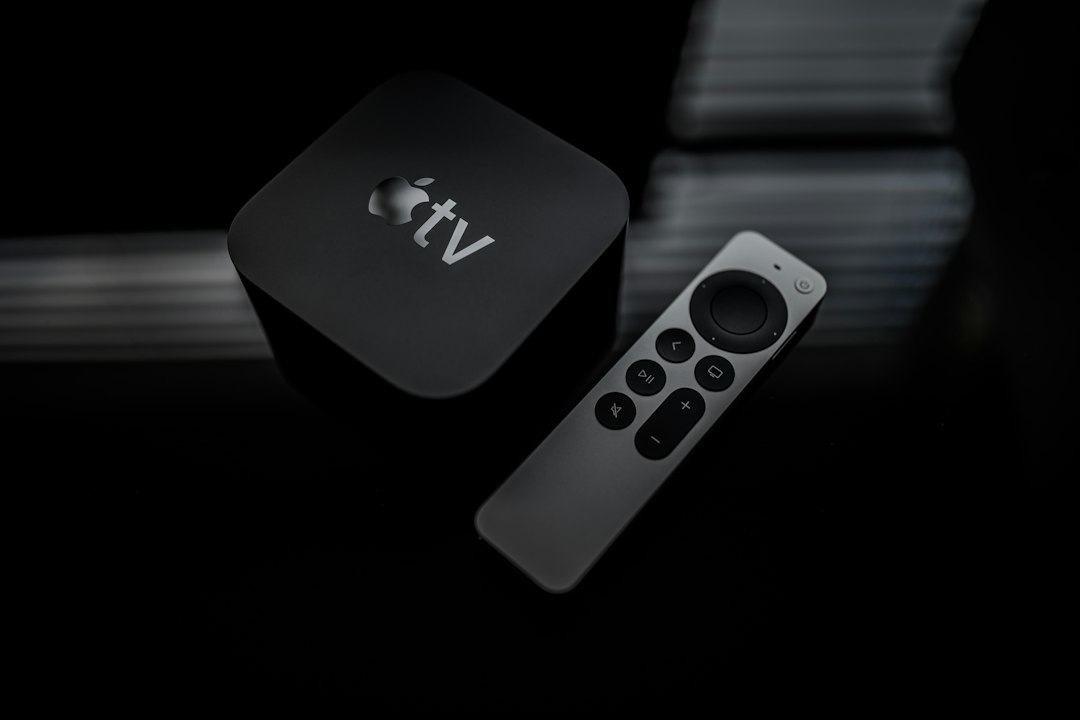
Use a USB-C or Lightning cable, depending on your model. Let it charge for at least 30 minutes. If you have the newer silver Siri Remote, check which port it has before digging through every cable drawer in the house.
After charging, try the remote again. If it still does not respond, move to the reset.
Step 2: Reset a Siri Remote or Apple TV Remote
This works for most modern Apple TV remotes, including the silver Siri Remote and the black touch surface remote.
- Stand near your Apple TV.
- Press and hold the TV/Control Center button.
- At the same time, press and hold Volume Down.
- Keep holding both buttons for about 5 seconds.
- Watch the Apple TV status light. It should turn off, then back on.
- Release the buttons.
- Wait around 10 seconds for the remote to restart and reconnect.
You may see a message that says the remote disconnected. Then it should connect again. That is normal. Do not panic and start pressing every button. Give it a few seconds.
Step 3: Pair the Remote Again
If the reset worked but the remote still will not control Apple TV, pair it again. This is the step that fixes many “it lights up but does nothing” problems.
- Hold the remote about 3 inches from the Apple TV box.
- Press and hold Back and Volume Up for 5 seconds.
- On older remotes, use Menu and Volume Up instead.
- Follow any on-screen message.
If Apple TV asks you to place the remote on top of the box, do it. It looks silly, but it helps the devices talk to each other.

Step 4: Restart the Apple TV Box
Sometimes the remote is innocent. The Apple TV box itself may be stuck. Expect to waste time on this if you only keep resetting the remote while the box is half-frozen.
Try this:
- Unplug the Apple TV power cable.
- Wait 10 seconds.
- Plug it back in.
- Wait for the home screen to return.
- Test the remote again.
If your remote starts working after this, the issue was likely with the Apple TV box, not the remote.
Step 5: Check for Interference and Line of Sight
Modern Siri Remotes use Bluetooth, so they do not need perfect line of sight. Still, interference can cause lag. Move other devices away from the Apple TV if possible. Game consoles, routers, soundbars, and crowded TV cabinets can all make things messy.
Older white or aluminum Apple Remotes use infrared. Those need a clear path. Make sure nothing blocks the front of the Apple TV. Even a soundbar can get in the way.
How to Reset an Older Aluminum or White Apple Remote
Older Apple Remotes are different. They use coin batteries and infrared. They do not reset in the same way as Siri Remotes.
Try these steps:
- Replace the coin battery if the remote is old.
- Point it directly at the Apple TV.
- To link it, hold Menu and Right for about 6 seconds.
- To unlink it, hold Menu and Left for about 6 seconds.
If an old remote only works from one odd angle, the battery or infrared sensor may be the problem.
When to Use Your iPhone Instead
If you need control right now, use the Apple TV Remote in Control Center on your iPhone. This is handy when the physical remote is dead, lost, or charging across the room.
Open Control Center, tap the Apple TV Remote icon, then choose your Apple TV. Your iPhone and Apple TV must be on the same Wi-Fi network. It is not a permanent fix, but it can save movie night.
When the Remote May Need Replacing
If the remote will not charge, will not pair, or keeps disconnecting after every reset, it may be failing. Check the charging port for lint. Try another cable. Try another charger. If nothing changes, replacement may be the cleanest option.
Most Apple TV remote problems are fixed by a charge, reset, or fresh pairing. Start there. It takes less than two minutes, and it beats arguing with a tiny silver remote that has clearly chosen chaos.