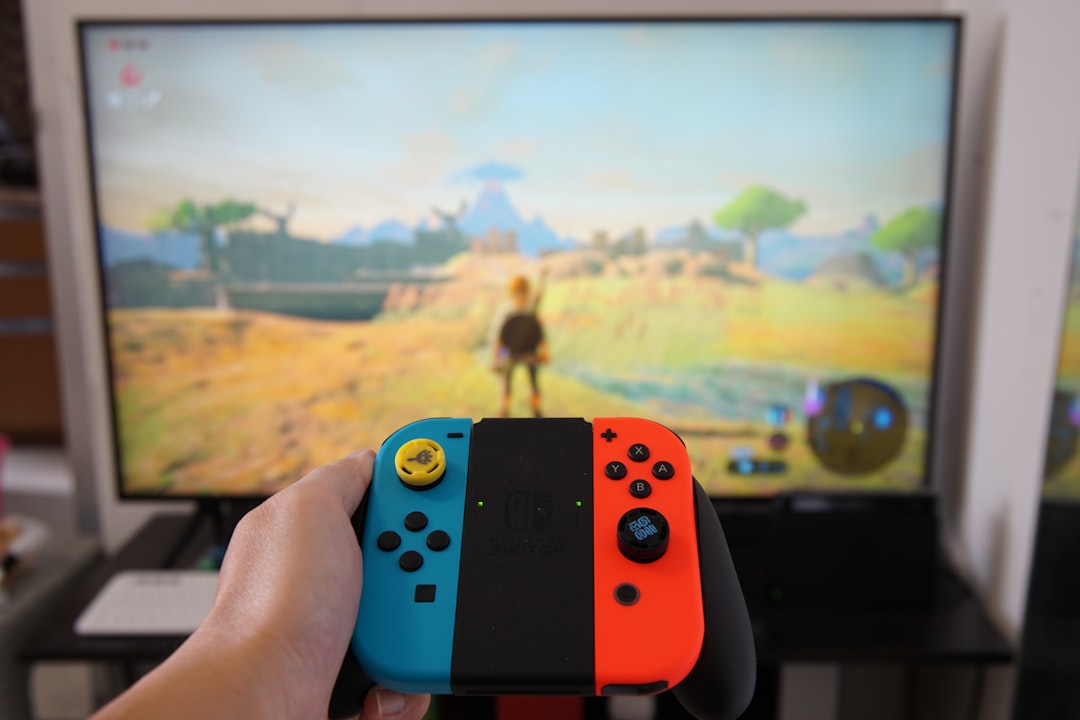

If you have ever taken a perfect The Legend of Zelda sunset screenshot, a ridiculous Mario Kart 8 Deluxe finish line clip, or a chaotic Splatoon 3 victory pose, you have probably used the Nintendo Switch capture button and wondered: can you still share it directly to Twitter from the console? The answer has changed, and if you remember the old “Post to Social Media” option, the current situation may feel a little confusing.
What Happened to Twitter Sharing on Nintendo Switch?
For years, the Nintendo Switch made it fairly easy to post captures to social media. You could open the Album, select a screenshot or video, choose a posting option, and connect a social media account. This was especially useful because the Switch has always been more limited than a phone or PC when it comes to file management and internet browsing.
That direct sharing option is no longer available for Twitter/X. Nintendo officially ended support for posting from the Switch Album to X on June 10, 2024. After that change, users could no longer link or use X as a built-in destination for sharing their screenshots and videos from the console.
This means that if you go into your Album today expecting to post straight to Twitter, you will not find the same smooth path that used to exist. The capture tools still work, and the Album still stores your screenshots and gameplay clips, but the direct bridge between the Switch and X has been removed.
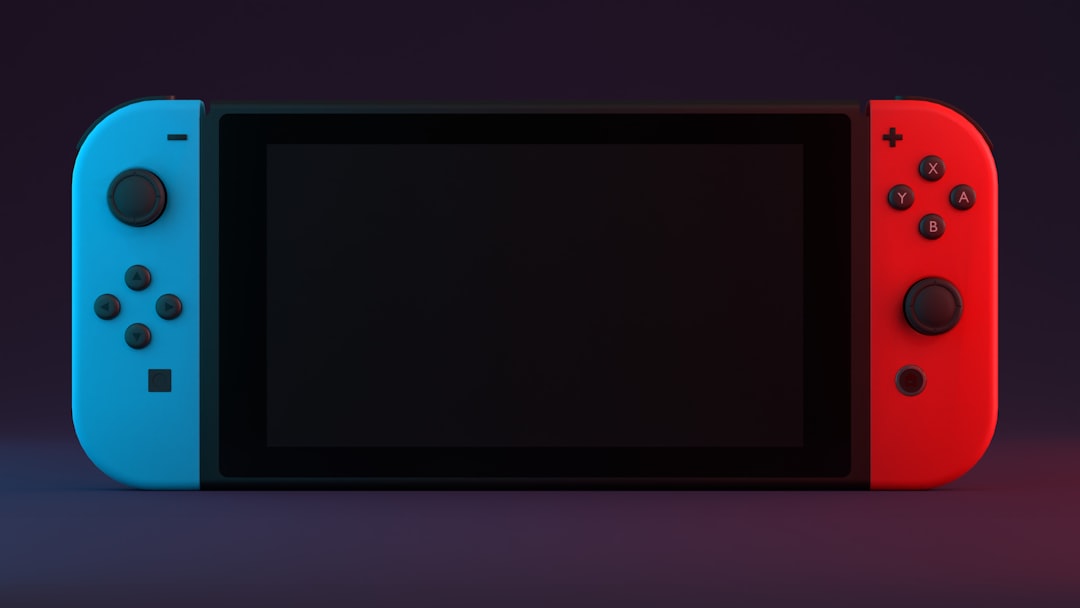
Why Did Nintendo Remove the Feature?
Nintendo did not give a long, dramatic explanation, but the change fits a broader industry trend. Several gaming platforms have reduced or removed direct X/Twitter integration over the last few years. Maintaining built-in social media posting is not as simple as adding a button; it depends on platform APIs, account systems, permissions, security requirements, and sometimes fees or policy changes from the social network itself.
In practical terms, Nintendo likely decided that keeping X integration alive was no longer worth the complexity. The Switch is also late in its life cycle, and Nintendo tends to keep its operating system simple rather than layering on social features that require ongoing maintenance.
For players, the reason matters less than the result: the old one-step Twitter post from the Album is gone. Fortunately, there are still several good ways to get your screenshots and videos off the console.
Can You Still Capture Screenshots and Videos?
Yes. The removal of Twitter sharing does not affect the Switch’s capture button or its Album. You can still take screenshots and record short clips in supported games.
- Press the Capture Button once to take a screenshot.
- Hold the Capture Button to save a video clip of the previous 30 seconds, if the game supports video capture.
- Open the Album from the HOME Menu to view, edit, delete, or transfer your captures.
It is worth noting that not every game allows video recording. Some titles disable video capture entirely, while others may restrict it during certain scenes, menus, or story moments. Screenshots are much more widely supported, but even those can occasionally be blocked in sensitive sections of a game.
How to Share Switch Screenshots to Twitter/X Now
Since the direct posting feature is gone, the new workflow is simple but slightly more manual: transfer the file first, then upload it yourself. There are three main ways to do this.
Option 1: Transfer Screenshots to a Smartphone
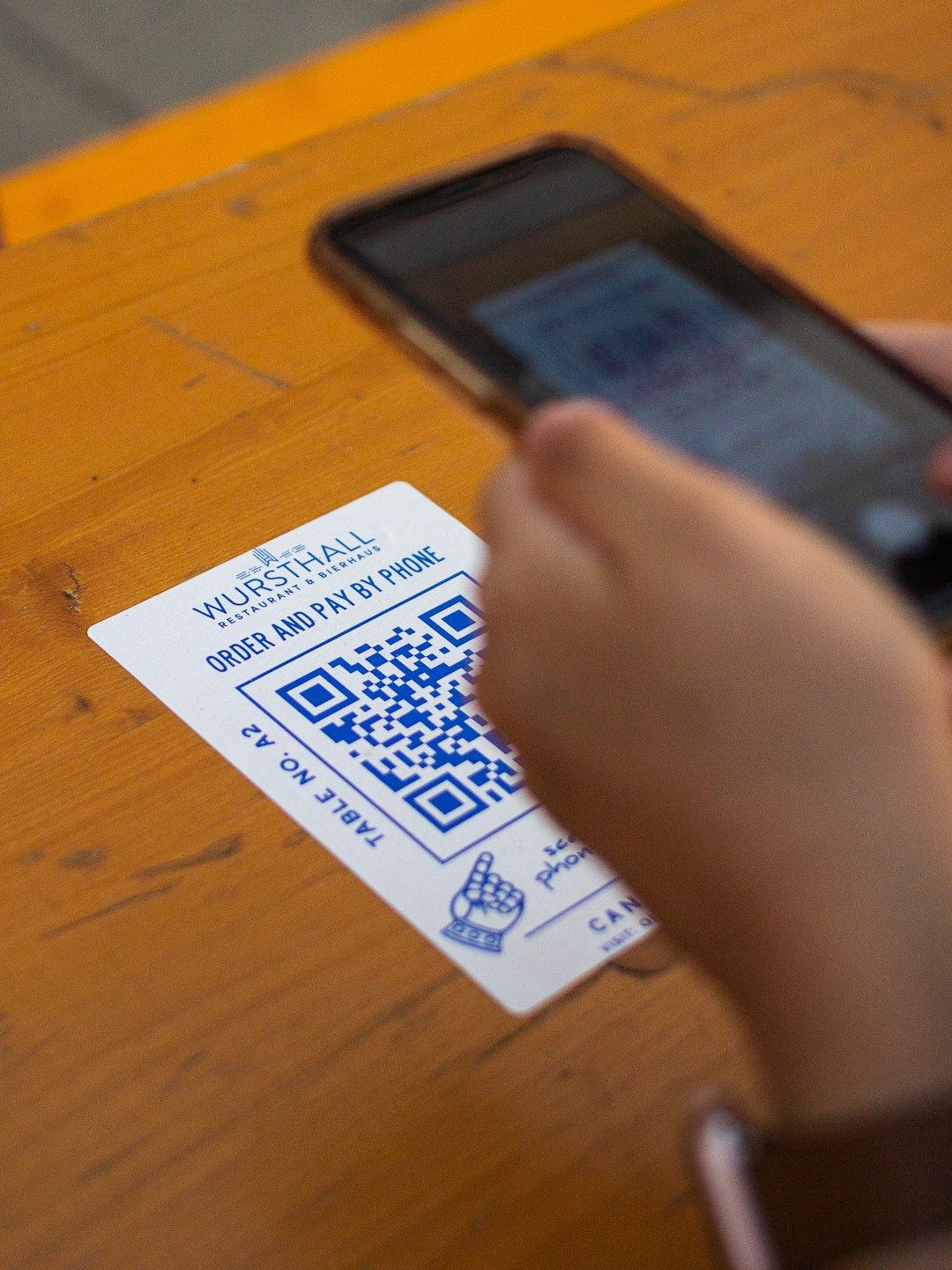
This is probably the most convenient method for most players. The Switch can send screenshots and videos to a smartphone using a local wireless connection and QR codes. Once the media is on your phone, you can post it to X, Instagram, Discord, Bluesky, Threads, TikTok, or anywhere else.
- Open the Album on your Nintendo Switch.
- Select the screenshot or video you want to share.
- Choose Sharing and Editing.
- Select Send to Smartphone.
- Choose whether to send one item or multiple screenshots.
- Scan the QR code shown on the Switch screen with your phone.
- Connect to the temporary network created by the Switch.
- Scan the second QR code or open the provided link to download the media.
- Save the file to your phone, then upload it manually to X.
This method is a little quirky the first time you use it, but it becomes quick once you understand the flow. The Switch creates a temporary connection, your phone joins it, and then you download the selected capture through a browser page.
Tip: If your phone keeps switching away from the Switch connection because it has no internet access, temporarily disable mobile data or automatic Wi Fi switching. Some phones try to “help” by disconnecting from networks that do not provide internet, which can interrupt the transfer.
Option 2: Connect the Switch to a Computer by USB
If you prefer organizing captures on a desktop or laptop, USB transfer is often cleaner. This option allows you to connect your Switch directly to a computer and copy screenshots or videos stored in the Album.
- Connect the Nintendo Switch to your computer using a compatible USB C cable.
- On the Switch, open System Settings.
- Go to Data Management.
- Select Manage Screenshots and Videos.
- Choose Copy to a Computer via USB Connection.
- On your computer, open the Switch storage that appears and copy the files.
This is especially useful if you are working with a large number of captures or want to edit them before posting. For example, you might crop a screenshot, combine clips, add captions, or archive your favorite gaming memories by date and title.
After copying the files, simply open X in a browser or app and upload the image or video like any normal post.
Option 3: Use a microSD Card
The most old-school method is to use a microSD card. If your screenshots and videos are saved on the card, you can remove it from the Switch and insert it into a computer or card reader.
This approach works well, but there are a few cautions. You should always fully power down the Switch before removing the microSD card. Do not simply pull it out while the console is sleeping or running, because that can risk data problems.
- Best for: bulk transfers, archiving, and computer-based editing.
- Less ideal for: quick posting from the couch.
- Important: power off the console before removing the card.
Can You Share Gameplay Videos to Twitter/X?
Yes, but again, not directly from the Switch. If the game supports video capture, you can save a 30-second clip, transfer it to your phone or computer, and then upload it to X manually.
There are a few limits to keep in mind. Switch gameplay clips are short, and the video quality is designed more for quick sharing than professional editing. If you want longer recordings, livestreams, or higher quality footage, you will need a capture card connected to a PC. A capture card lets you record or stream gameplay through software such as OBS, which gives you far more control over resolution, audio, overlays, and editing.
For casual players, though, the built-in 30-second clips are still perfect for funny glitches, dramatic wins, surprise shiny Pokémon encounters, and other quick moments worth sharing.
What About Facebook and Other Social Features?
The Switch’s social media features have changed over time, and availability can vary depending on the service and Nintendo’s current support. The important thing to understand is that the console is moving away from built-in social posting as a main feature. Nintendo’s preferred approach now is more about transferring media out of the console, then letting you decide what to do with it elsewhere.
That is not necessarily a bad system. It gives you more flexibility because once a file is on your phone or computer, you are not limited to a single platform. You can post the same screenshot to X, send it to a friend in a messaging app, upload it to a cloud drive, or edit it into a meme.
Does This Affect Friend Suggestions?
Nintendo also discontinued certain social media based friend suggestion features around the same period. Previously, the Switch could use linked social accounts to help find friends. With social media integration reduced, those features are no longer as prominent or may no longer work in the same way.
You can still add friends on Switch using methods such as:
- Friend codes
- Local users
- Users you have played with
- Nintendo Account related options, where available
In other words, multiplayer and friend lists still work. What changed is the convenience layer that tied the Switch directly to outside social networks.
Is the New Method Better or Worse?
It depends on what you value. The old direct Twitter sharing option was faster. You could post from the couch without touching another device, which felt natural for a hybrid console built around convenience. For players who shared a lot of captures, losing that feature is undeniably annoying.
However, the newer transfer-first approach has some advantages. You can preview your post on a better screen, edit the image, add hashtags more comfortably, and choose from more platforms. Typing on a phone or computer is also much easier than entering text with Joy Con controllers or the Switch touchscreen.
The biggest downside is friction. A great social sharing feature should feel almost invisible, and the current process adds a few more taps, scans, or cables. Still, it is far from impossible, and once you set up a routine, sharing from Switch remains fairly painless.
Best Workflow for Most Players
For most people, the best workflow is:
- Capture the moment on your Switch.
- Open the Album.
- Send the screenshot or clip to your smartphone.
- Save it to your camera roll or downloads folder.
- Post it manually to X with your caption, tags, and mentions.
This keeps the process mobile and avoids cables, card readers, and desktop file browsing. If you post often, it may be worth creating a dedicated folder on your phone for Switch captures so they do not get lost among regular photos.
Final Answer: Can You Still Share to Twitter From a Nintendo Switch?
You cannot share directly to Twitter/X from a Nintendo Switch anymore. Nintendo removed the built-in integration, so the old Album-to-Twitter posting flow is gone. But you can absolutely still share your Switch screenshots and videos on X by transferring them to another device first.
Think of the Switch now as the place where you capture the moment, not necessarily the place where you publish it. Your best options are smartphone transfer, USB transfer to a computer, or using a microSD card. It is not quite as seamless as it used to be, but your best gaming moments can still make their way from Hyrule, Rainbow Road, or Inkopolis to your social feed.