Choose GitHub Desktop if you want the fastest, cleanest GitHub workflow on Windows; choose GitKraken if you need a richer visual Git client for bigger repos, mixed hosting, and team workflows. GitHub Desktop supports Windows 10 64-bit or later, which keeps the setup simple for most modern PCs [source: GitHub Docs]. Both tools manage commits, branches, merges, and pull requests. The better pick depends on how much control you want on screen.
TLDR: GitHub Desktop is best for beginners, solo developers, and GitHub-only projects. GitKraken is better if you manage many branches, multiple remotes, or repositories across GitHub, GitLab, and Bitbucket. For example, a Windows team handling 20 pull requests per week may save time with GitKraken’s visual commit graph, while a student pushing 3 class projects will likely move faster in GitHub Desktop. If you hate clutter, start with Desktop.
Why this choice matters on Windows
Git on Windows has improved a lot, but it can still feel awkward. Paths get weird. Credentials expire. Merge conflicts show up at the worst time. A good desktop client cuts down the pain.
GitHub Desktop and GitKraken both sit on top of Git. They give you buttons, history views, branch tools, and safer ways to commit code. That matters if you do not want to live in PowerShell all day.
GitHub Desktop: simple, clean, and hard to mess up
GitHub Desktop feels like it was built for one main job: make GitHub easier on a Windows machine. It connects to your GitHub account, lists your repositories, and keeps the core actions close. Commit. Push. Pull. Fetch. Switch branch. That is the flow.
The best part is the low friction. New users can install it, sign in, clone a repo, edit files in VS Code, and push changes without learning every Git command first. That is a big deal for students, writers, designers, and junior developers.
- Best for: GitHub-only work, small teams, learning Git, open source contributions.
- Strength: Very simple interface with fewer ways to get lost.
- Weak spot: It can feel limited when branch history gets messy.
- Cost: Free.
The catch is that GitHub Desktop does not try to be a full control room. Its history view is useful, but not as deep as GitKraken’s graph. If you work with stacked branches, long-running release branches, or several remotes, you may outgrow it.
GitKraken: visual control for busy repositories
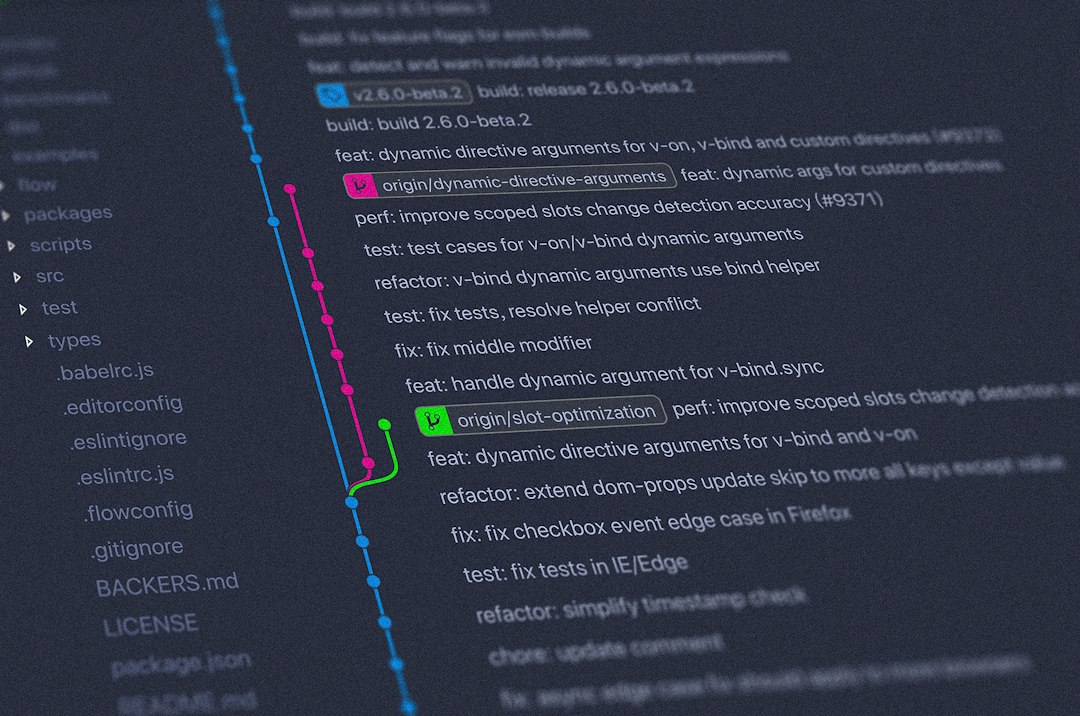
GitKraken is more powerful on screen. Its commit graph is the star. You can see branches split, merge, and move in a way that makes Git feel less invisible. For larger repos, that visual view can prevent mistakes.
It also supports more services out of the box. GitHub, GitLab, Bitbucket, and Azure DevOps can all fit into the workflow. That helps if your company does not keep every project in one place.
GitKraken Client offers free and paid plans, with team and business features placed behind paid tiers [source: GitKraken]. For hobby use, that may be fine. For a company, check cost before the whole team gets attached to it.
- Best for: teams, complex branch work, visual Git users, mixed hosting setups.
- Strength: Excellent graph view and broad service support.
- Weak spot: Heavier than GitHub Desktop and less beginner-friendly.
- Cost: Free tier plus paid plans.
Honestly, it feels like GitKraken asks for more attention. On a modest Windows laptop, the first launch can feel heavier than GitHub Desktop. Not awful. Just noticeable when you only wanted to fix one typo and push.
Daily workflow comparison
For basic GitHub work, GitHub Desktop wins on speed. You clone a repo, edit files, write a commit message, and push. Pull requests open in the browser, which is fine because GitHub’s web interface is already strong.
GitKraken shines when you need to understand what happened. A branch is behind. A teammate force-pushed. A merge created a strange history. GitKraken makes those events easier to spot before you do something risky.
Merge conflicts are also more approachable in GitKraken. GitHub Desktop can handle conflict workflows, but many users end up opening another editor. GitKraken puts more of that context in one place.
Which one should Windows users install first?
Install GitHub Desktop first if you are new to Git or mainly use GitHub. It is clean, free, and friendly. It also pairs well with VS Code, which many Windows developers already use.
Install GitKraken first if you already know Git basics and your repo history often gets crowded. It is also the stronger pick when you manage client projects across different Git hosting services.
Think about the project too. A developer shipping a small site may care more about deployment and costs, so comparing cloud hosting options may matter more than advanced Git graphs. A creator selling software or templates may need clean release branches plus a solid digital product checkout setup. Even art teams that store source files, scripts, or docs beside assets may pair Git with tools used for comics and illustration workflows.
Final recommendation
Use GitHub Desktop for simple GitHub repository management on Windows. It is the best default choice. It gets out of the way.
Use GitKraken when the repo gets serious. If your team has many branches, several remotes, or frequent merges, the visual graph can save real time. You may not need it on day one, but you will appreciate it when Git history starts to look like spaghetti.