Use the Apple TV Remote inside Control Center on your iPhone. It lets you control Apple TV, type faster, use Siri, adjust volume, and stop hunting for the tiny silver or black remote under the couch. Apple explains that the remote is built into Control Center on iPhone and iPad, so you do not need a separate app in most cases [source: Apple].
TLDR: Open Control Center, tap the Apple TV Remote icon, pick your Apple TV, and enter the code shown on your TV. That is it. For example, if you type a 12-character Netflix password with the iPhone keyboard, it may take 15 seconds instead of 2 annoying minutes with the TV remote. Best use case: your remote is missing, dead, or being guarded by a dog.
What Is the Apple TV Remote App?
The “app” is not really a normal app anymore. It is a built-in iPhone tool. You find it in Control Center.
It works like a touch remote on your screen. You swipe to move around. You tap to select. You can play, pause, go back, mute, and use Siri.
The best part is typing. Seriously. Typing an email on a TV remote is a tiny form of punishment. On iPhone, the keyboard pops up. You type like a normal human.
What You Need First
Before you start, check these basics. They save time.
- An iPhone running a recent version of iOS.
- An Apple TV or a smart TV that supports AirPlay and Apple TV controls.
- The same Wi Fi network on both devices.
- Bluetooth turned on.
- Your TV turned on, because pairing needs a code on the screen.
The catch is that Wi Fi has to behave. If your iPhone is on mobile data and your Apple TV is on home Wi Fi, they will ignore each other like strangers in an elevator.
How to Open the Apple TV Remote on iPhone
Here is the simple way.
- Unlock your iPhone.
- Open Control Center.
- Tap the Apple TV Remote icon.
- Choose your Apple TV from the list.
- Enter the four digit code shown on your TV.
On iPhones with Face ID, swipe down from the top right corner. On iPhones with a Home button, swipe up from the bottom.
If you do not see the remote icon, add it. Go to Settings, then Control Center. Find Apple TV Remote. Tap the green plus button.
How to Control the TV
Once connected, the iPhone screen becomes your remote. It is clean and simple.
- Swipe area: Move through apps, rows, and menus.
- Tap: Pick an item.
- Back button: Go to the last screen.
- TV button: Open the Apple TV app or home screen.
- Play/Pause: Stop or start video.
- Volume buttons: Use the iPhone side buttons, if your setup supports it.
- Siri button: Search by voice.
Try saying, “Find action movies” or “Open YouTube.” Siri can be faster than scrolling through 30 app icons while your popcorn gets cold.
Why It Is Better Than the Physical Remote
The physical Apple TV remote is sleek. It is also very easy to lose. It slides into couch cracks like it has a secret mission.
Your iPhone is harder to lose. You probably checked it three times while reading this.
The iPhone remote also wins for these jobs:
- Typing passwords into streaming apps.
- Searching for shows and movies.
- Pausing fast when someone knocks.
- Using Siri without grabbing another device.
- Controlling playback from across the room.
Honestly, it feels like the physical remote was made for looks, while the iPhone remote was made for survival.
Can It Turn the TV On and Off?
Yes, often. But not always.
If your TV supports HDMI CEC, Apple TV can turn the TV on and off. It can also switch to the right HDMI input. This means your iPhone may wake the whole setup.
If it does not work, check your TV settings. The feature may have a weird brand name. Samsung calls it Anynet+. LG calls it Simplink. Sony may call it BRAVIA Sync.
It drives me crazy that every TV brand gives the same feature a different name. Expect to waste 45 seconds finding it in settings.
What If It Does Not Connect?
Do not panic. Try these fixes in order.
- Make sure iPhone and Apple TV use the same Wi Fi.
- Turn Bluetooth on.
- Restart your iPhone.
- Restart Apple TV.
- Update iOS and tvOS.
- Remove and re-add the remote in Control Center.
- Move closer to the Apple TV.
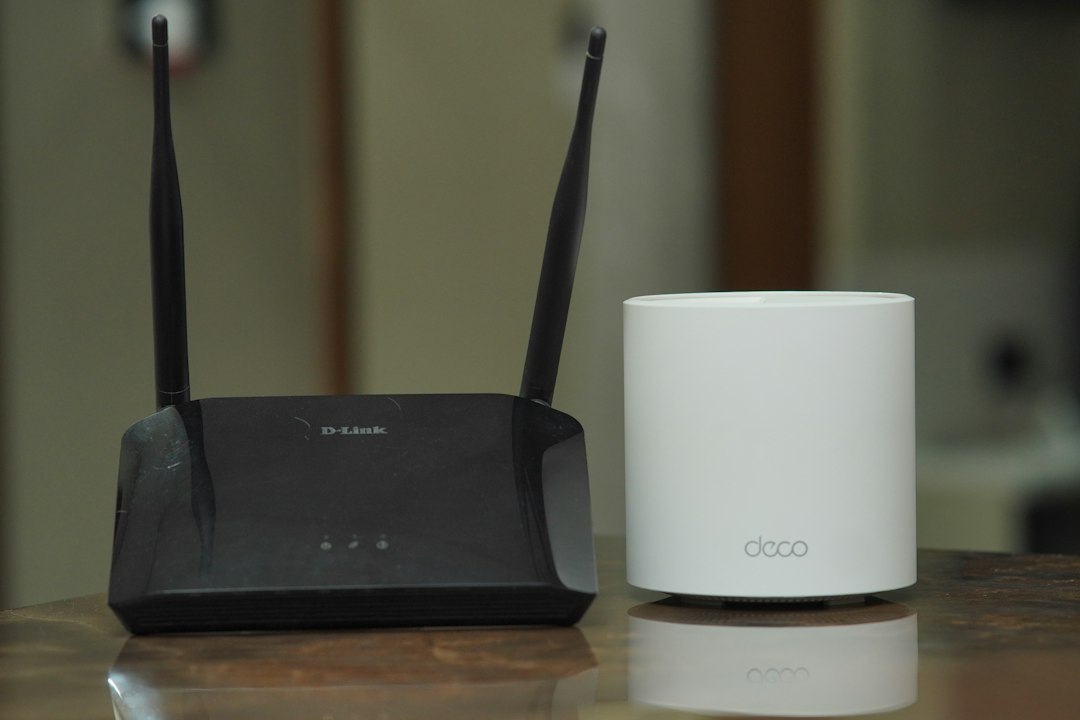
If the Apple TV still does not appear, check your router. Some guest networks block devices from seeing each other. That is great for safety. It is bad for remotes.
Quick Tips for Daily Use
- Long press buttons to see extra options.
- Use the iPhone keyboard when a text box appears.
- Ask Siri to open apps faster.
- Add Remote to Control Center so it is always one swipe away.
- Keep the real remote nearby for backup.
The Apple TV Remote on iPhone is one of those small tools that feels boring until you need it. Then it feels brilliant. It is fast, free, and already on your phone. Use it the next time the remote vanishes, the battery dies, or typing a password makes you question your life choices.