Start by renewing the IP address, resetting the Windows network stack, and power cycling the router before you replace cables or blame the PC. The error “Ethernet doesn’t have a valid IP configuration” usually means Windows did not receive a usable address from DHCP. Microsoft documents ipconfig /release and ipconfig /renew as standard IP troubleshooting commands [source: Microsoft].
TLDR: First, restart the router and PC, then run ipconfig /release, ipconfig /renew, and netsh winsock reset in Windows Terminal as administrator. In a small office with 15 laptops and 5 wired desktops, one stuck DHCP lease can knock a single Ethernet PC offline while Wi Fi still works. If the issue returns within 24 hours, check the router app for IP conflicts, DHCP pool size, and firmware updates. Example: if your router only hands out 20 addresses and 22 devices connect, someone is going to lose the IP lottery.
What the error really means
This error is not always a dead Ethernet port. Most of the time, Windows is connected to the router at the cable level, but it does not have a valid local IP address such as 192.168.1.25 or 10.0.0.18. Without that, the PC cannot talk properly to the router.
You may see a strange address starting with 169.254. That is a self assigned address. It means Windows gave itself a fallback address because DHCP failed. Honestly, it feels like Windows should explain that better instead of dumping a vague error on users.
Step 1: Check the physical connection
- Unplug the Ethernet cable and plug it back in firmly.
- Try another LAN port on the router.
- Test a different Ethernet cable if you have one.
- Look for link lights near the Ethernet port. No light often means cable, port, or adapter trouble.
If the cable clicks in but Windows keeps switching between connected and disconnected, suspect the cable first. Bad cables waste time. They also mimic software problems very well.
Step 2: Use Windows network tools
Right click the Start button and open Terminal Admin or Command Prompt Admin. Run these commands one at a time:
ipconfig /releaseipconfig /renewipconfig /flushdnsnetsh winsock resetnetsh int ip reset
Restart the PC after the last two commands. These steps force Windows to drop the bad network state and ask the router for clean settings. Expect to waste a few minutes here, but it is still faster than reinstalling drivers blindly.
After the restart, open Command Prompt and type:
ipconfig
Look under Ethernet adapter. You want to see:
- IPv4 Address: something like 192.168.x.x or 10.x.x.x
- Default Gateway: usually your router address
- DHCP Enabled: Yes
Step 3: Run the Windows troubleshooter, but do not trust it fully
Open Settings, then go to System, Troubleshoot, and Other troubleshooters. Run the Network and Internet troubleshooter.
It may reset the adapter or restart a network service. That can help. The annoying part is that it often says the problem is “fixed” when the connection still fails 30 seconds later. Treat it as a quick helper, not a final answer.
Step 4: Check adapter settings
Go to Settings, then Network and Internet, then Advanced network settings. Open the Ethernet adapter options and confirm that IPv4 is set to obtain an IP address automatically.
If someone entered a static IP months ago, it may no longer match the router. Set both options to automatic unless your network admin gave you exact values.
- IP address: obtain automatically
- DNS server: obtain automatically, or use trusted DNS such as 1.1.1.1 or 8.8.8.8
Step 5: Use your router app to find the real cause
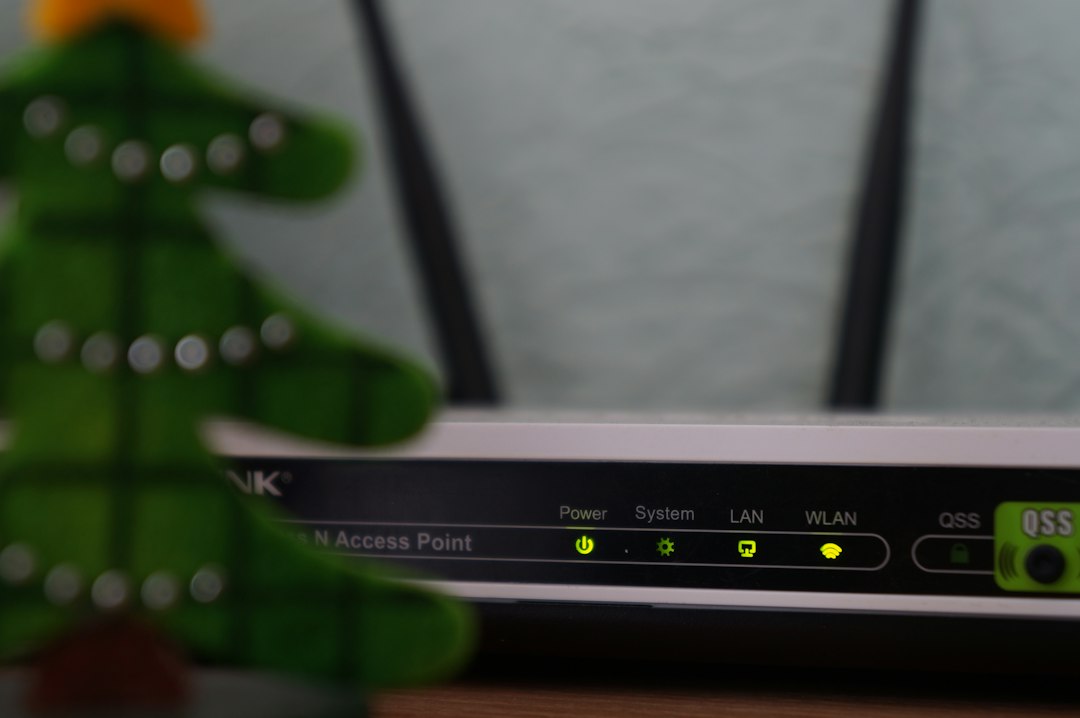
Router apps are useful because they show what Windows cannot. Common apps include TP Link Tether, ASUS Router, NETGEAR Nighthawk, Eero, UniFi, and Fing. Use the app to check connected devices, DHCP settings, blocked clients, and firmware updates.
Look for these issues:
- IP conflict: two devices trying to use the same address.
- Small DHCP pool: the router has run out of addresses.
- Blocked device: parental controls or access rules may deny the PC.
- Old firmware: router bugs can break DHCP after long uptime.
If your router app shows the PC by name but says it has no IP, reboot the router. If it shows the PC as blocked, remove the block and reconnect the cable.
Image not found in postmeta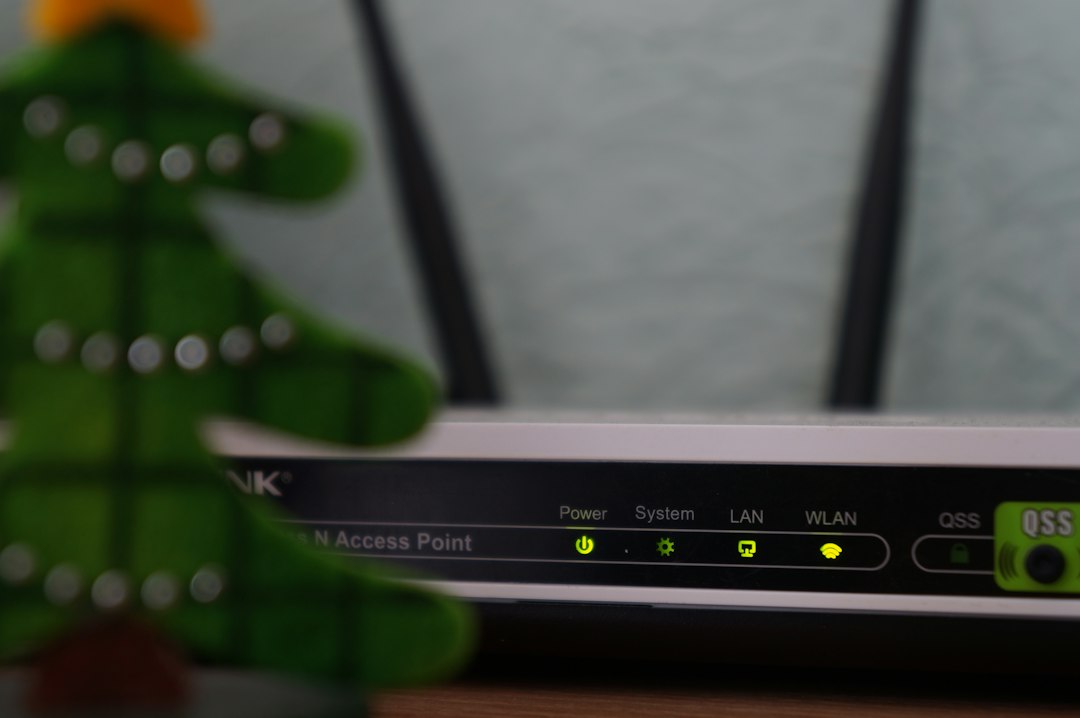
Step 6: Update or reinstall the Ethernet driver
Open Device Manager, expand Network adapters, then right click the Ethernet adapter. Choose Update driver. If that fails, choose Uninstall device, restart the PC, and let Windows reinstall it.
For business PCs, get the driver from Dell, HP, Lenovo, Intel, or Realtek. Avoid random driver updater tools. They often add noise and can install the wrong driver.
When to suspect the router
If several wired devices fail at once, the router or switch is the likely cause. If only one PC fails on every cable and every router port, the PC adapter or Windows setup is more likely. Keep the test simple. Change one thing at a time.
A good final test is direct and plain: connect the same cable to another laptop. If that laptop gets a valid IP in under 10 seconds, your cable and router port are probably fine. Then focus on Windows, the driver, or the Ethernet adapter itself.